How do I let your team use AI at work?
Start by finding out what your team already uses. Then write a one-page rule on what data may go into AI. Pick one or two approved business accounts. Test with a small group on real work. Name who checks the output. Review every 90 days.
The plan below fits a firm of about 10 people with no IT or HR staff. It runs for 12 weeks. Your part is mostly decisions.
Is my team already using AI?
Most likely, yes. Staff use it because it is easy and nobody told them not to. Microsoft and LinkedIn surveyed 31,000 people in 31 countries for their 2024 Work Trend Index. They found that 78% of AI users bring their own tools to work. Microsoft sells AI, so read that as a signal, not a verdict.
Nationwide, an insurer, asked owners in July 2026. Six in 10 said employees use public AI tools for work. Only 36% had written policies on it.
The Census Bureau counts firms, not people. Its survey from December 2025 to May 2026 found business AI use "hovered between 17% and 20%." A firm can report no AI use while one person tries it alone.
A ban does not fix this. MIT's Center for Information Systems Research put it plainly in 2024: banning these tools won't work. It advises guidelines that let staff experiment. A ban pushes use into personal accounts you cannot see.
What are owners most worried about?
Five worries come up most. Each has a short answer and a step below.
- Staff paste customer data into AI. Write a data rule. Give staff an approved account. Steps 2 and 3.
- AI gives wrong answers. A named person checks anything that leaves the building. Step 4.
- Who is responsible. The person who sends the work owns it. Step 4.
- Staff fear for their jobs. Say plainly what AI is for in your business. Step 5.
- Cost and payoff. Start with one or two accounts and one real task. Steps 3 and 4.
How does confidential data actually get out?
It does not need a hacker. Confidential company information leaves the building the day somebody pastes it into an account you do not own, and you find out later, if at all. Public AI tools may keep and use what you type. A personal account leaves no log, no admin view, no way to ask who used what.
That is why the rule comes before the tools. One page, one approved account, one named reviewer. The rest of this post is how to write that page.
Step 1: Ask what your team already uses
Hold a no-blame week. Tell your team you want to know which AI tools they use and for what. Say this is not a hunt for who broke a rule.
Write down four things for each tool. What is it? What task does it help with? Is it a personal or work account? What kind of data goes in?
The list may surprise you. It shows which tasks staff already find worth doing. Those are your best first pilot tasks.
Step 2: Write a one-page rule
Nobody follows a twelve-page rule. Keep it to one page. Cover four things: the data rule, the approved accounts, the named reviewer and the review date.
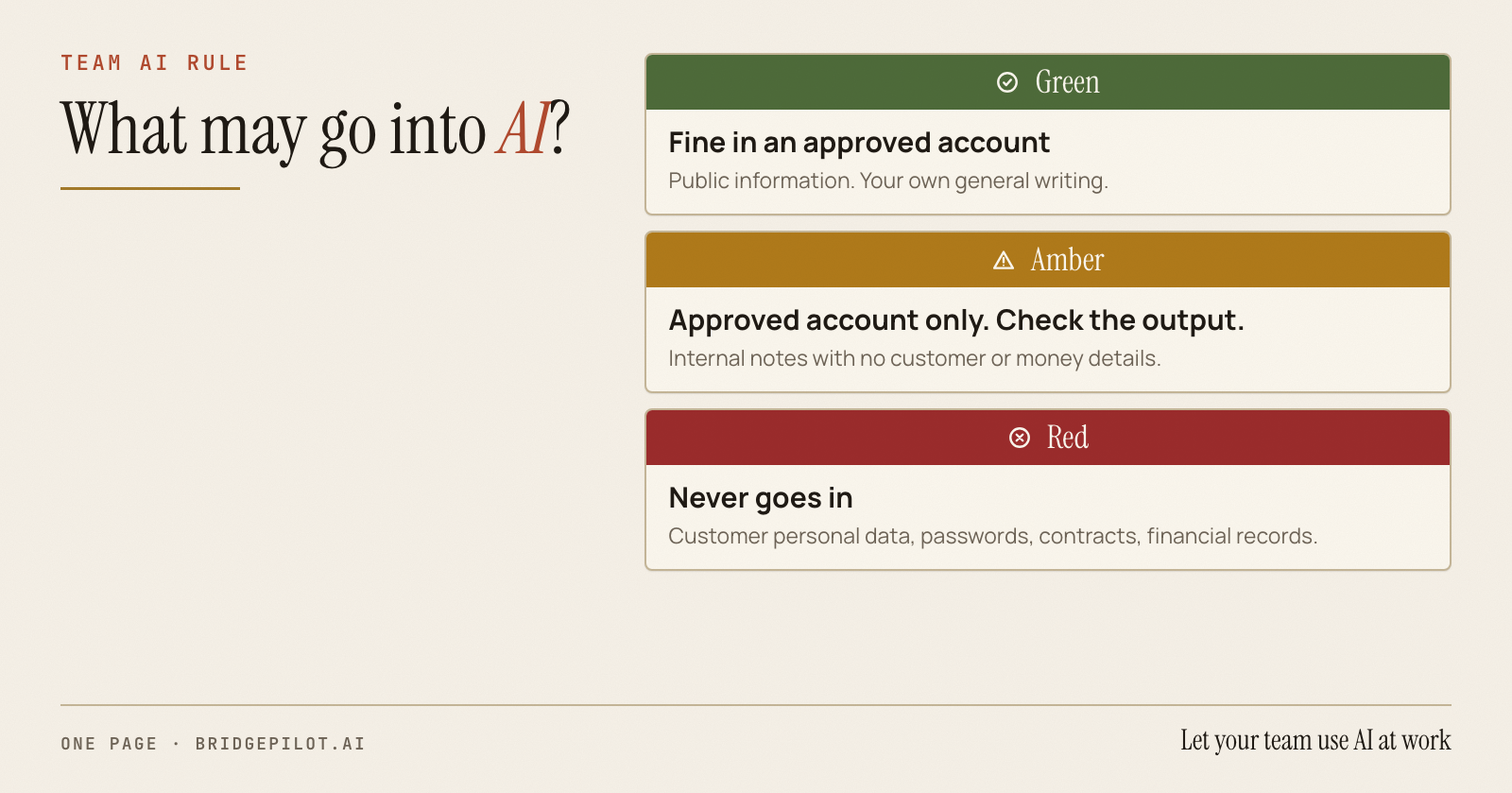
Make the data rule a traffic light:
| Colour | What it covers | Rule |
|---|---|---|
| Green | Public information and your own general writing | Fine in an approved account |
| Amber | Internal notes with no customer or money details | Approved account only. Check the output. |
| Red | Customer personal data, passwords, contracts, financial records, health or other regulated data | Never goes in |
Accounting firm Carr, Riggs & Ingram (March 2026) gives the reason. Public AI tools may keep and use what you type. Treat company information as confidential.
Add a short "never" list. AI does not make legal or financial decisions, and it does not commit the company to a contract. Add hiring and pay decisions too. If a customer talks to an AI, tell them.
This post is not legal advice. For regulated data, contracts or HR rules, ask a lawyer to read your final page.
Step 3: Pick approved accounts and read the vendor terms
Choose one or two tools. Fewer tools means less to learn and less to watch. The US Chamber of Commerce gave the same advice in 2024: start with a few essential tools.
Use business accounts, not personal ones. For each tool, read the vendor's terms and look for three things:
- Does it train its models on your data?
- How long does it keep what you type?
- Can you, as the owner, see and manage who has an account?
Business plans and personal plans often follow different terms. Check the plan you will actually buy.
Step 4: Pilot with two or three people
Pick two or three people and one or two low-risk tasks. Good first tasks are first drafts, summaries and brainstorming.
Name one reviewer. That person checks anything that reaches a customer, a contract, a number or a decision. The person who sends the work still owns it.
For each pilot task, write two lines: how long it took, and whether the result was good enough. After three or four weeks you have your own numbers, not someone else's.
Step 5: Train on real work, and say what AI is for
Gallup reported in June 2025 that only 22% of employees say their organization has communicated a clear AI plan. Microsoft's 2024 data says only 39% of AI users have had training from their company.
So hold one 60-minute session. Use your team's real tasks, not a demo. Show a few "do" and "don't" examples. End when everyone can answer the question in the card below.
Also say what AI is for in your business. Say whether jobs change. Let staff choose which tasks to hand over first. Do not promise what you can't keep.
Can I paste this into AI?
Print this card. Staff use it in the moment, before they paste.
- What is in it? Customer details, money, passwords or contracts: stop. Public information or your own words: go on.
- Which account am I in? Approved business account only. Personal account: stop.
- Who checks the answer? If it leaves the building, a named person reads it first.
- Still not sure? Ask the named person before you paste, not after.
Step 6: Review every 90 days
Put a date on the calendar now. At each review, look at four things: the tool list, the one-page rule, mistakes and near-misses, and new tool requests.
Add a mistake step to the rule. Staff tell the policy owner the same day. You fix it with the customer. You note what changed. Keep it blame-light, or people stop telling you.
Save a dated note after each review. In 90 days, you will know more about your team's AI use than most owners do.
What does a 12-week rollout look like?
This plan is our own, built from the sources listed below. It is not a quoted framework.
| Stage | When | What you do | Done when |
|---|---|---|---|
| 0. Find out | Week 1 | Ask the team what they use. Write it down. | A list of tools and tasks exists. |
| 1. Rules | Weeks 1 to 2 | Write the one-page rule. Set up one or two approved accounts. | You have signed off the rule. |
| 2. Pilot | Weeks 3 to 6 | Two or three people try one or two low-risk tasks. One reviewer checks. | Each task has a time and quality note. |
| 3. Train | Weeks 4 to 8 | One 60-minute session on real tasks. | Everyone can answer "Can I paste this?" |
| 4. Widen | Weeks 8 to 12 | Add the tasks that worked. Add the rest of the team. | Staff use approved accounts, not personal ones. |
| 5. Review | Every 90 days | Check the list, the rule, mistakes and new requests. | A dated review note exists. |
Get the PDF: one-page team AI rule
The PDF puts the rule on one page. Fill in the blanks and hand it out. It holds the data rule, approved accounts, named reviewer, the "Can I paste this?" card and the review date.
FAQ
Do I need a written AI policy?
Yes, but keep it to one page. A one-page rule is short enough to read and to remember. Nationwide found only 36% of owners have any written policy, so even this puts you ahead.
Can I just ban AI at work?
You can set red lines, and Step 2 does. A blanket ban tends to push use out of sight. MIT's research center says banning these tools won't work. Set the rule, give an approved account, and ask what people use.
Who owns what AI writes?
The US Copyright Office said in January 2025 that copyright can protect AI output only with enough human authorship. Typing a prompt alone is not enough. Using AI as a tool does not rule out protection. For anything you must own, such as a brand or a logo, keep a person's real creative work in it.
What if AI makes a mistake?
The person who sends the work owns it. They tell the policy owner the same day. You fix it with the customer, then note what to change in the rule.
Can you set this up for us?
Yes. You show us the job, we set up the account and the training inside your business, and you keep everything. One job, one fixed price.
Want us to set it up?
The rule is one page. Setting it up inside your business is the work: one approved account, the vendor terms checked, one session with your team, and a review date on the calendar. We do that as one job with one fixed price, in your accounts. You keep the rule and the account.
See what we build, or start from the BridgePilot home page. Then book a call.
Sources
- Microsoft and LinkedIn, 2024 Work Trend Index, 2024-05-08: news.microsoft.com (vendor)
- Nationwide, small business AI survey (Edelman Intelligence, July 10 to 26, 2026), 2026-09-15: news.nationwide.com (insurer)
- US Census Bureau, Business Trends and Outlook Survey story, 2026-05-26: census.gov
- Gallup, AI use at work, 2025-06-15: gallup.com
- MIT CISR, "Bring Your Own AI," 2024-10-03: cisr.mit.edu
- Carr, Riggs & Ingram, "Employee Use of AI: Why You Need a Policy," 2026-03-11: criadv.com
- US Chamber of Commerce, "How to Encourage Your Employees to Use AI at Work," 2024-04-10: uschamber.com
- US Copyright Office, Part 2 report, 2025-01-29: copyright.gov