
Excel to web app: turn a shared spreadsheet into a simple app, step by step
To turn an Excel sheet into a web app, describe the sheet to your AI chat, agree one page of design, and build a clickable mock. Then build the real app on a test database with a sign-in for each person, review its security, publish it, and run it beside the sheet until the two match.
By Jesse Xu, Founder. Published 2026-11-01. Updated 2026-11-01
What do you need before you start?
Who this is for
A small team that lives in one shared spreadsheet, and feels it getting slow, crowded or risky.
What you end up with
A small web app in place of the sheet: an entry form, a list you can filter, and a sign-in for each person.
What you need
- Your sheet, and one person who knows how it is really used.
- A chat AI such as ChatGPT, Claude or Gemini. We work on any AI system; these are examples, not advice to pick one.
- Sample rows with names and contact details replaced. You do not need to be a developer; some people call this vibe coding, which here just means describing what you want to an AI chat tool.
- Later, a hosting account, and a person who knows security to look before real data goes in.
What not to do alone
- Put real customer data in before the access rules are tested.
- Go live without a backup you have tried to restore.
- Skip the security review.
Why does a shared spreadsheet start to hurt?
A sheet works, until it does not. This guide comes from BridgePilot, a small-business AI studio. Four problems show up again and again:
- It is slow. The file opens slowly and scrolls forever.
- Many people edit it. Two people are in the same file at once.
- Rows get overwritten. One person’s change is lost, and nobody knows who made it.
- Things are hard to find. Looking up one order means scrolling, or a filter you set up again each time.
You do not need a database. You need the sheet’s job done by something built for several people.
How do you turn an Excel sheet into a web app? The walkthrough
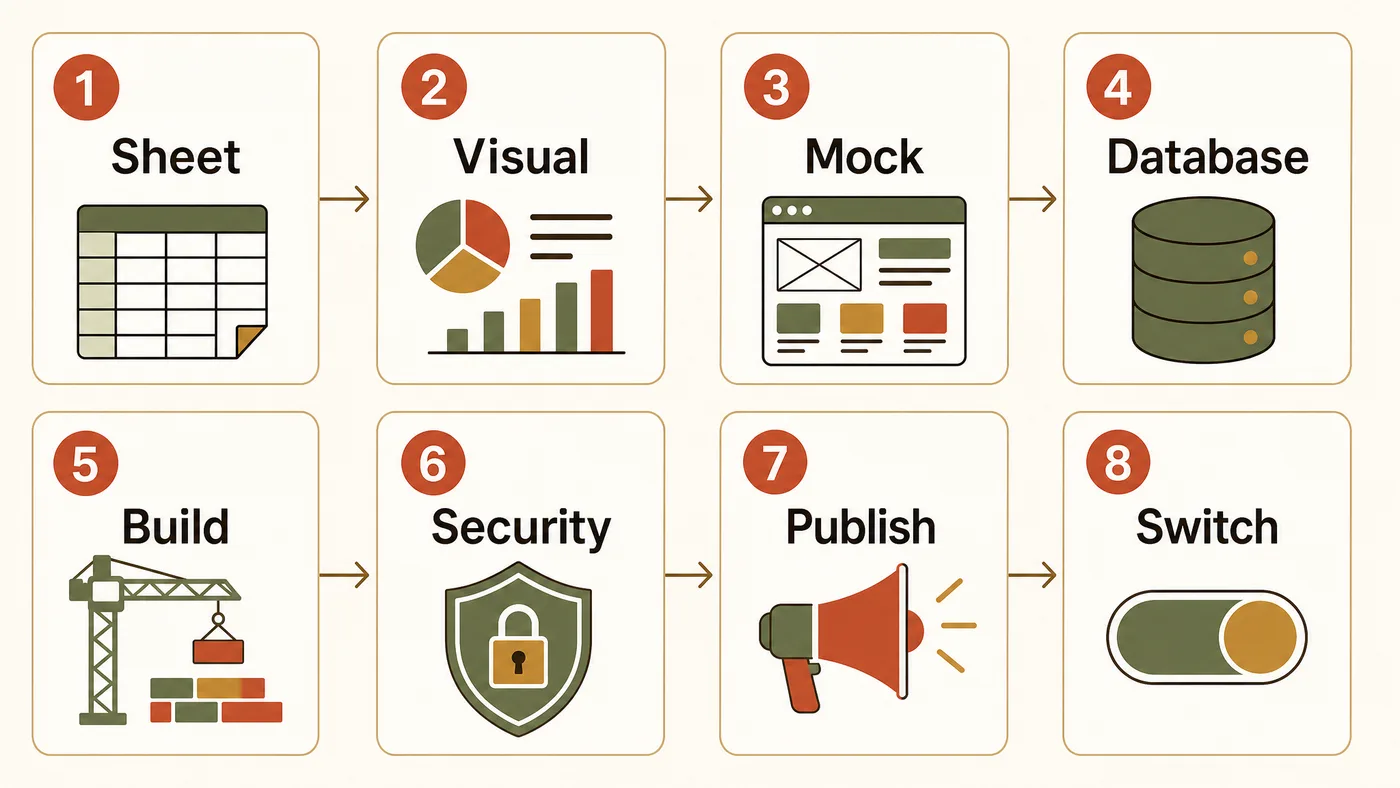
To turn an Excel sheet into a web app, follow eight steps in order: look at the sheet, design one page, build a clickable mock, set up a test database, build the app, review its security, publish it, then run it beside the sheet. Steps 1 to 7 each have a prompt to copy exactly.
Look at your sheet
Export the sheet as a CSV (File, Download, CSV). Keep the column names and 10 to 20 sample rows, with names and contact details replaced. Give it to the AI with this prompt. You answer its questions; your answers become the plan.
Here is a sample of my spreadsheet. First, describe what you think it is used for, which columns matter most and any problems you see (duplicates, mixed formats, empty cells). Then ask me up to 8 questions, one at a time, to understand how people use it: who enters data, who reads it, what they look up, what goes wrong. Do not propose a solution until I have answered. After my answers, propose a small web app: the screens, the fields, who sees what, and what to leave out of version one.
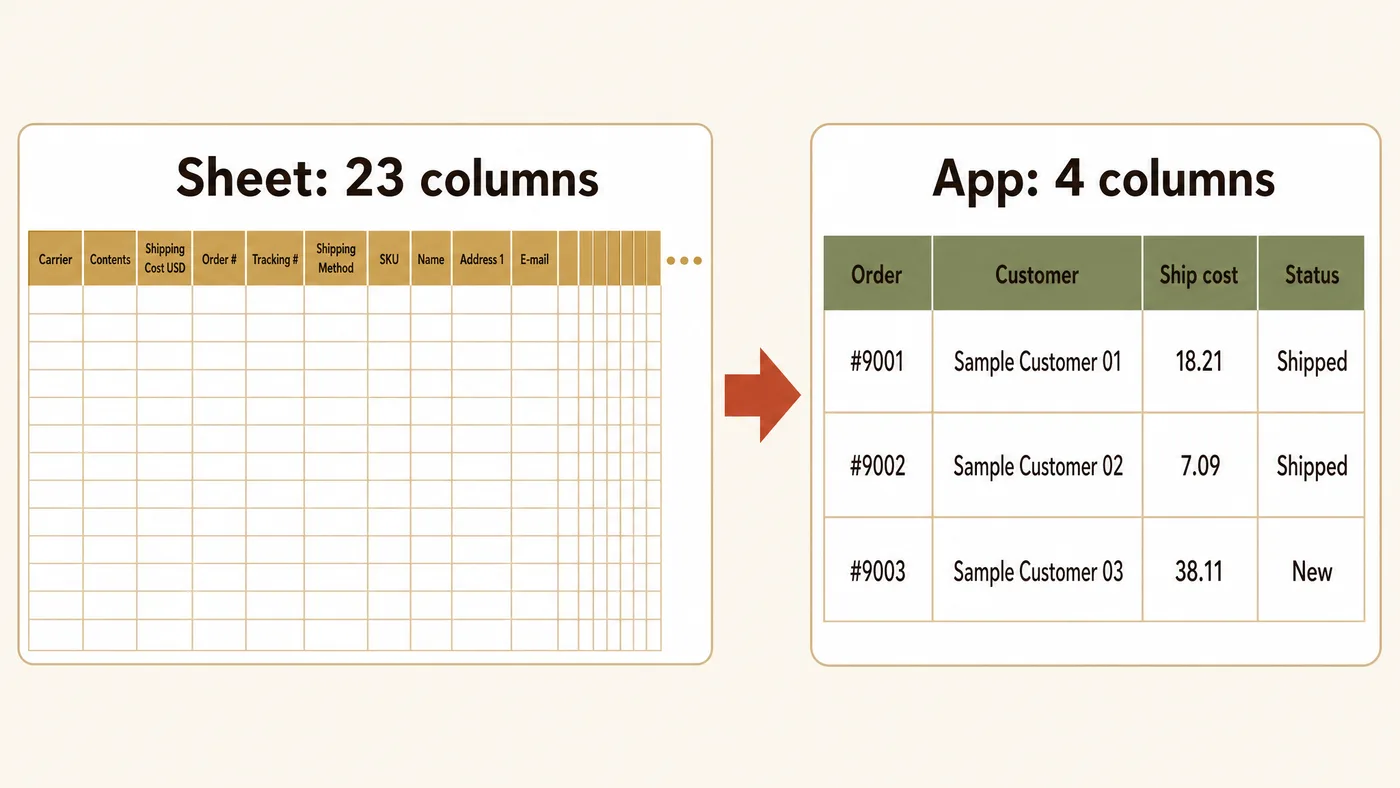
In the real build: The sheet had 23 columns. The AI noticed mixed types: one cost column held text and numbers, and another column held either contents or a person’s name. Which columns people look up most is a question for your own team. In the real build, the answers given as the user of the sheet were: the shipping fee and the status are looked up most, and there were too many columns to scan.
What can go wrong: Real customer data in a public AI service. Use sample rows only.
Get a one-page visual, not a spec
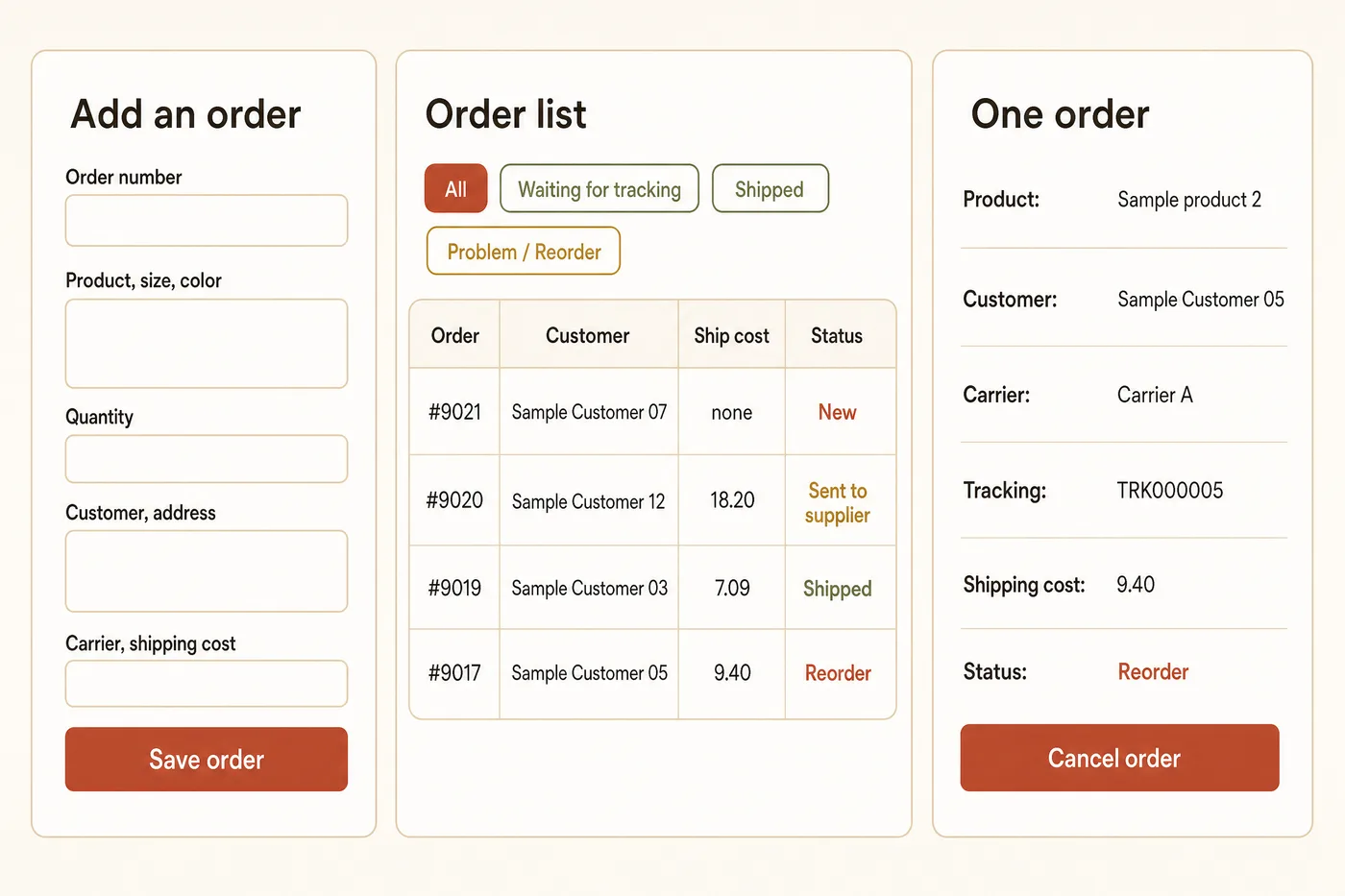
Ask for one picture of the app: the entry form, the list with filters, one order. You decide what is in it and what stays out of version one. Change the picture until it is right, before anything is built.
Using what we agreed, do three things. 1) Write the spec for yourself and do not show it to me. 2) Show me one page of visual design for the app: the entry form, the order list with filters, and the detail of one order. Use my sample column names and dummy data. 3) Under the picture, add three short lines: who sees what, what is left out of version one, and what happens when a row is deleted. Then look for gaps in this design and ask me up to 5 questions, one at a time. Do not build anything yet.
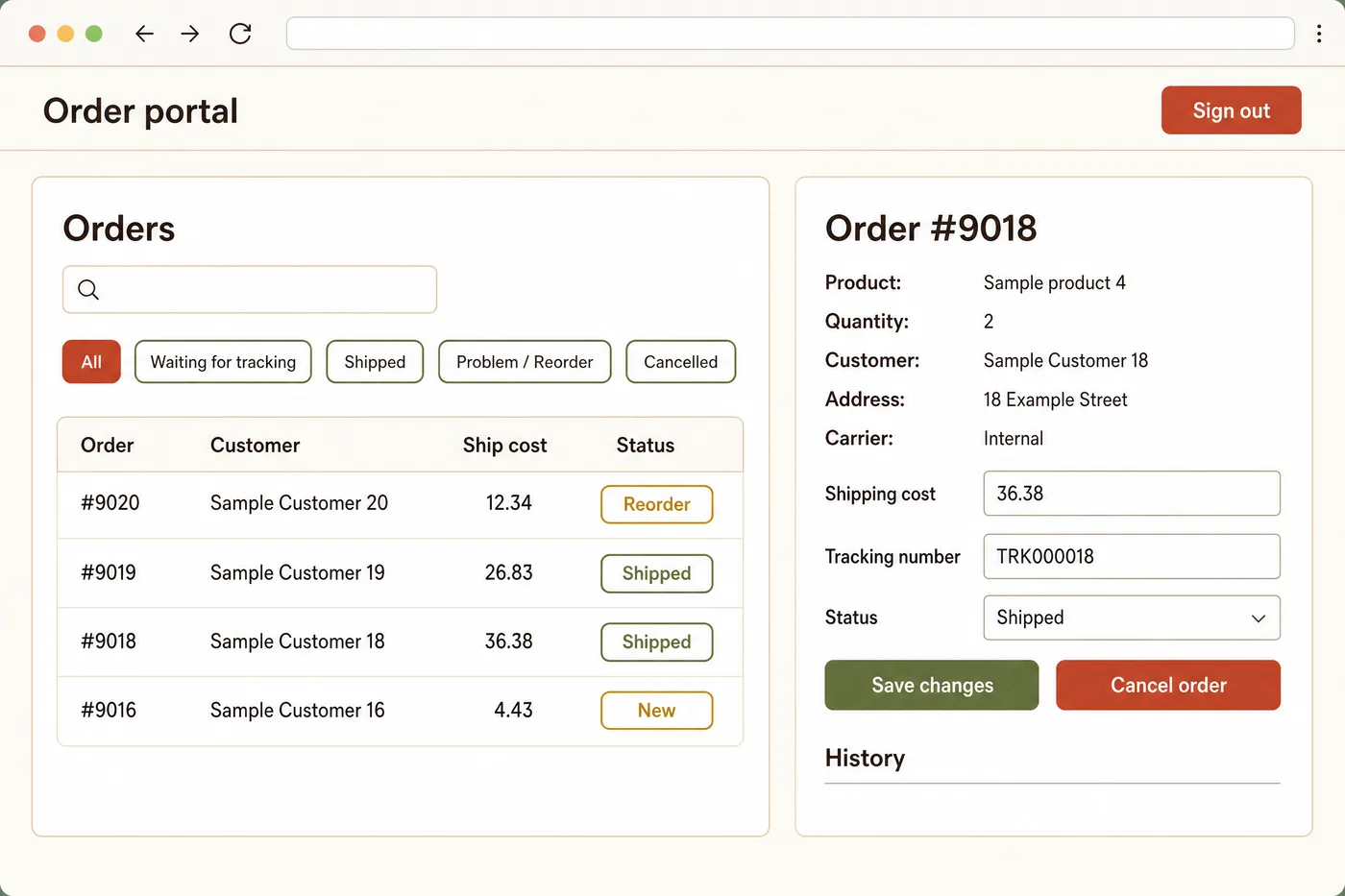
In the real build: The design page had three parts: an entry form, a short four-column list and one order open, plus three lines on who sees what, what is left out of version one, and what happens on delete. The AI’s gap questions (two people editing, a cancelled order, who may delete, the list of statuses) were all answered with a standing “yes” to its recommendations, so they were not tested with a second person.
What can go wrong: Skipping the questions. Two people editing one order, a cancelled order and who may delete are easy to miss.
Build a clickable mock
The AI turns the agreed design into one HTML file you open in your browser, with dummy data only. Click through it like a real user, and note what feels wrong.
Turn the agreed design into a clickable mock as a single HTML file I can open in my browser. Use dummy data only (about 20 sample orders). It must work: an entry form that adds a row fast, a list with filters (status, date, customer), and a detail view for one order. No database, no login, no real data. Keep the file simple and tell me how to open it. After I try it, I will tell you what feels wrong.
In the real build: The mock passed a 10-check self-test. Its first sample data showed only 3 of the 7 statuses, so the data was changed to show all seven.
What can go wrong: Building the real thing before the mock feels right.
Prepare the database and test who can get in
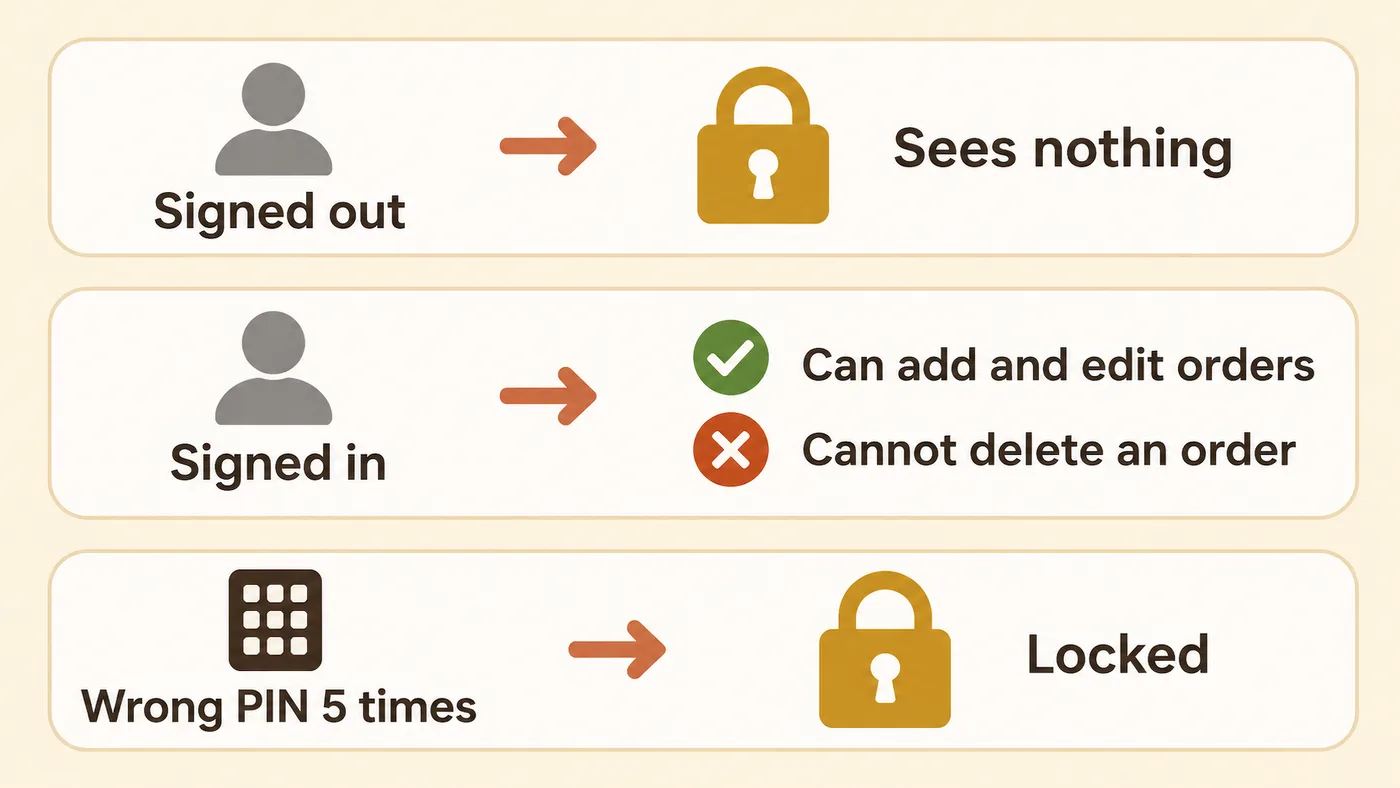
Set up a test database with the tables from the design and your dummy rows. Turn on access rules, then prove they work: a signed-out visitor sees nothing, and a limited user cannot delete an order.
Set up a test database for this app, on a hosted service with sign-in built in. Create the tables from the agreed design and load my dummy rows. Turn on access rules so a signed-out visitor can read and write nothing, and each signed-in user can only see and change what the design says. Then give me a short test list I can run to prove it: sign out and try to read orders; sign in as a limited user and try to delete an order. Do not connect anything to my real data.
In the real build: These checks ran on a local database file, with the access rules in the app and as database triggers. 34 access checks passed. A signed-out visitor was refused on all 8 calls. A signed-in person could not delete an order, and the database refused a direct delete too. The tests also caught a real bug: setting a status and its reason in one edit failed, because the fields were saved one by one. It was fixed with one all-or-nothing save.
What can go wrong: Connecting it to real data before the access tests pass.
Build the app on the test database
Build the app from the mock on your own computer, connected to the test database, with a sign-in for each person. Test one screen at a time, then run a full click-through test.
Build the app from the clickable mock, connected to the test database, running on my computer only. Add a sign-in for each person and use the access rules we set. Build one screen at a time and tell me how to test each one before we start the next. Do not use real data yet. When all screens are built, write an end-to-end test list and run it in a real browser, as a script: sign in, add an order, edit its cost, add tracking, change its status, filter the list, cancel an order, switch staff with the PIN, sign out, and try to open a page while signed out. Tell me which steps failed, fix them, and run the whole list again until every step passes.
In the real build: On the same local setup, a 38-check click-through test passed: sign in, add an order, edit it, filter, cancel, switch person with a PIN, lock after five wrong PINs, and sign out. The first run of an earlier, smaller test failed three checks; all three were mistakes in the test, not in the app.
What can go wrong: Building every screen first and testing at the end.
Security review
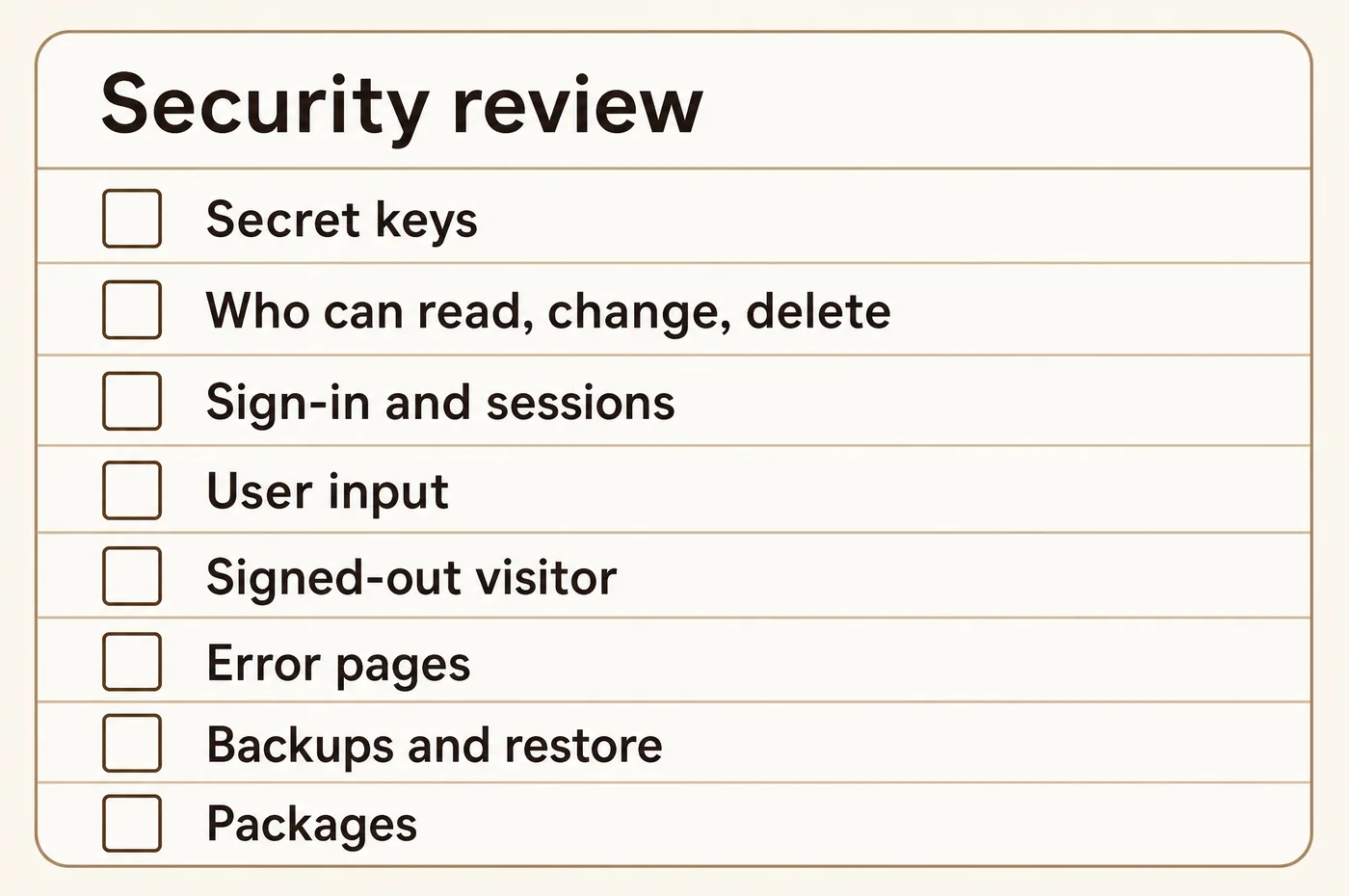
Easy to skip, and worth doing. Open a second, fresh AI chat and ask it to act as a security reviewer of your code and database rules. Have it write the tests, and run them yourself against a copy of the data: a chat with pasted code cannot run them. Fix every high item, then re-run the tests from step 5. Before real customer data goes in, have a person who knows security look at the app.
Act as a security reviewer. You are a fresh chat and you have not seen this project before. Review the code and the database rules I give you and report in plain words, ordered from high to low risk. Check these groups. A) Secrets: keys or passwords in the code, in the browser, or already committed to git history (if found, say they must be rotated). For Supabase, the service-role key must never be in the front end, and row-level security must be on for every table. B) Sign-in: how passwords are stored; limits on password guessing; session expiry; cookie flags (HttpOnly, Secure, SameSite) and protection against CSRF where cookies are used; default or demo accounts, and demo logins shown on the sign-in screen, which must be removed. C) Access: for each table, who can read, change and delete; what a signed-out visitor and a limited user can reach. Write the tests as a script for me to run against a copy of the data, because you cannot run them from pasted code. D) Input and errors: user input going into the database without checks; error pages that show internal details. E) Backups and packages: backups and a tested way to restore them; outdated packages. For each finding say how serious it is, how I can see it myself, and the exact fix. Do not tell me the app is secure. Tell me what you checked and what you could not check.
In the real build: This step was not part of the real build. The access tests in step 4 and the click-through test in step 5 covered part of this list: sign-out, delete and PIN lock. The test app’s sign-in screen showed demo logins; remove anything like that before go-live.
What can go wrong: Treating the review as a guarantee. A review lowers risk; it does not remove it.
Publish, then go live with real data
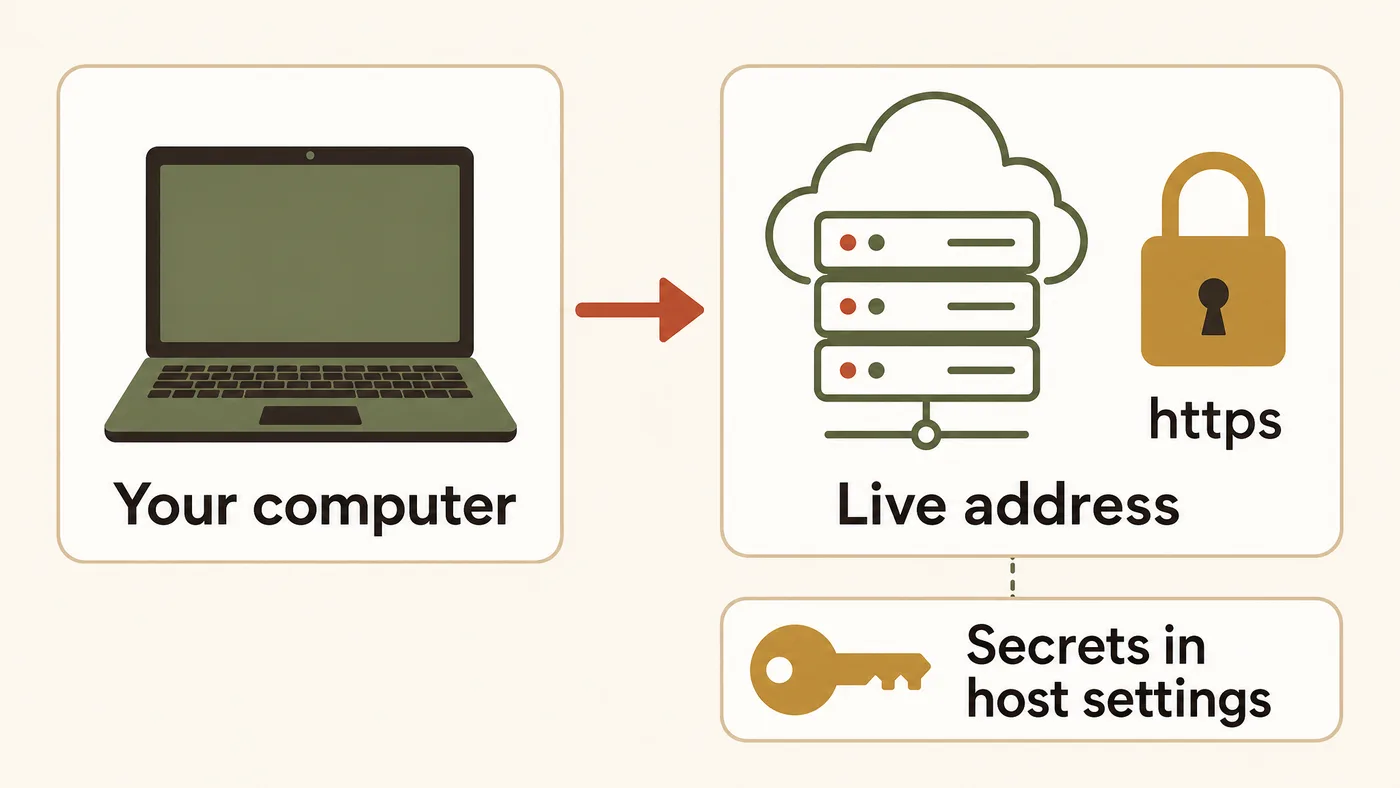
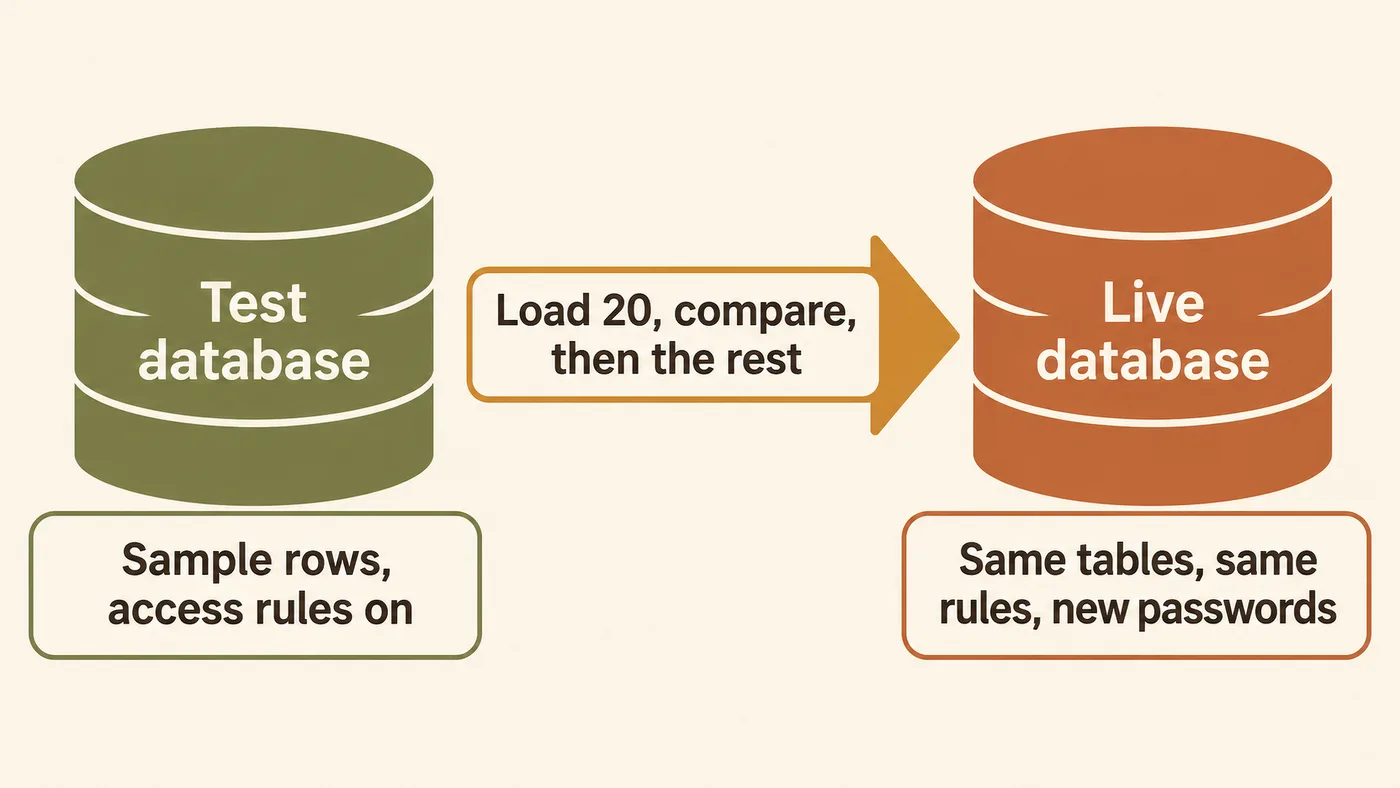
Put the app online, with your AI chat helping you. Choose a host, set the secret settings on the host, deploy, and use a web address that starts with https. A hosted database means redoing the access rules and re-running every test from steps 4 and 5 against the hosted version. Some hosts cannot run a server, so the app may need to be rebuilt for the host you pick. Test sign-in and one add, edit and delete on the live address, with dummy data. Only then create a fresh database with the same tables and rules and new passwords and keys. Clean the sheet, load a small batch, compare it with the sheet, then load the rest. Test a restore of the backup, and keep the original sheet as a read-only backup.
Help me put this app online. First ask me which host and which database I choose, and tell me what each choice means for sign-in and backups. Tell me plainly whether the app must be rebuilt for that host, because some hosts cannot run a server. Then: set up the hosted database with the same tables, and redo the access rules there; put every secret in the host's settings, never in the code; deploy the app; give me a web address that starts with https; and then re-run every test from the database and build steps against the hosted version, plus sign-in and one add, one edit and one delete on the live address. Use dummy data only until every test passes.
Where to publish
We do not name a best platform; they change. These fit a small team, judged on easy deploys for non-developers, built-in sign-in, backups and exporting your data. Check each one’s current documentation before you choose.
Default: Supabase for the database and sign-in, with Netlify or Vercel to host the pages. Why: sign-in, a database and per-row access rules come together; the page host deploys from your code, keeps secret settings out of the code and serves an https address automatically; the data exports with a standard database dump. This fits an app built as pages that talk to the database, not a small server like the one in the real build. With Supabase, never put the service-role key in the front end, and turn on row-level security for every table. When not: its entry-level plan has no automatic backups and backups cannot be downloaded there, so take manual backups with its command-line tool or choose a plan with automatic backups. Low-activity projects on the entry plan may also be paused after 7 days, so do not run a real business on it unattended.
Alternative: Render, one place for the web service and a managed database. Why: it can run a small server with a database, the shape of the real build; secrets go in settings and https is managed for you. When not: if you want sign-in handled for you; we found no built-in end-user sign-in in its documentation, so check before you choose.
Checked 2026-11-01: Supabase backups, Supabase entry-plan backups, Supabase production checklist, Supabase API keys, Netlify HTTPS, Vercel secret settings, Render HTTPS.
When the live address passes your tests, run this go-live prompt, with the same care as before:
Prepare to go live. Create a second, fresh database with the same tables and the same access rules, empty. Create new keys and passwords for it; do not reuse the test ones. Look at my real sheet and list what you would clean first (duplicates, mixed formats, empty cells), and wait for my OK. Then load a small batch of 20 rows and compare the counts and a few rows with the sheet. Only after I approve, load the rest. Keep the original sheet untouched as a read-only backup. Test the backup before the rest goes in: take a backup of the fresh database, restore it into a separate scratch database, and compare the counts and a few rows. When the real data is in, run the same end-to-end test list on a copy of the live database, not on the live one. On the live address itself, run only read-only checks, plus at most one clearly labelled test order that I then delete with the owner role, or skip it. Tell me every step that fails.
In the real build: The real build ran on one computer, with a small Python server and a local database file, and was never put online. Netlify and Vercel cannot run that kind of server, so publishing it as described here means rebuilding the app for the hosted stack, or using a host that can run a server, such as Render. A hosted database also means redoing the access rules and re-running every test; the checks above ran on the local file only. The go-live was tried on a fresh local database with invented rows made messy on purpose. Cleaning 60 rows left 56: 2 duplicate order numbers dropped, 2 rows with no customer held back, and 163 cells tidied. The first load put in 0 rows, and the count check caught it before the rest was loaded. After the fix, counts matched: 56 and 56.
What can go wrong: Putting secrets in the code, reusing the test database or its passwords for real data, or testing on the live database with test orders that stay in your real data.
Run it beside the sheet, then switch
Use the app and the sheet side by side for a while and compare the two. When they match, retire the sheet.
In the real build: A simulated week of 11 events, with 5 planted slips: a cost typed only in the sheet, a tracking number typed only in the app, a typo, an order cancelled only in the app, and an order added only in the sheet. The compare found all 5. It was a simulation, and a real week may show other slips. The sheet has no status column, so status could not be compared.
What can go wrong: Switching off the sheet before the two match.
That gives you a first version: a form, a list you can filter, and a sign-in for each person. It is only a first version. Here is where it stops being enough.
What is the difference between a spreadsheet and a database?
A spreadsheet to database move changes where the data lives: your app keeps its data in the database, and the sheet becomes a table. That is what any Google Sheets to app build does behind the scenes.
| In the sheet | In the app |
|---|---|
| One tab of any values | A table with named fields |
| Formulas anyone can overwrite | Rules that run the same way |
| One shared file | A screen for each person |
| History by guess | Every change recorded |
| Copy and paste | Other tools read the same table |
Where does doing it yourself break?
This is not a warning that AI-built apps are unsafe. These are the questions to answer before real data goes in.
Security: four questions
- Who sees what? Can a part-time helper see only their tab or rows? Can anyone reach the app without signing in?
- Login. How do people sign in? Who can add or remove a person? What happens when someone leaves?
- Backups. Where is a copy kept, how often, and has anyone tried to restore it?
- A deleted row. Can you get it back? Do you know who deleted it, and when?
Also read the AI tool’s data terms before real data goes in. That is why step 1 uses sample rows only.
Team sharing
Two people can edit at once. Do you need roles: enter, edit, view? Where does the data live, and who owns the account? What happens when the one person who built it is away?
If any of this is unfamiliar, ask a person who builds apps to do it with you.
When is a sheet still fine?
Keep the sheet if one person uses it, or a few people use it and rarely edit at the same time. If nothing is lost, nothing is slow, and nobody needs to see less, leave it alone.
Want BridgePilot to build it for you?
We take your sheet and write down its rules with you. We build the app on the AI system and tools you choose, set up sign-ins and backups, and test it beside your sheet. Then we hand it over in accounts you own. Read who we are.
The first build has no monthly fee. After handover, monthly care is optional and quoted on the call. For cost questions, see Pricing.
Frequently asked questions
- Can I convert an Excel file to a web app?
- Yes, for a small job. An AI chat tool can help you build a form, a list and filters from your sheet. Before real data goes in, check sign-in, who sees what, and backups.
- What is the difference between a spreadsheet and a database?
- A spreadsheet is one shared file where anyone can type over anything. A database is a set of tables with named fields and rules, and it records every change. An app reads and writes those tables, so each person gets their own screen.
- Is a web app better than a shared Google Sheet?
- It depends. A sheet is fine for one person or a few who rarely edit together. An app helps when many people enter data, rows get overwritten, or some people should see less.
- Is an app built with AI secure?
- Not by default. A security review lowers risk; it does not remove it. Fix every high item, re-run your tests, and have a person who knows security look before real customer data goes in.
- Who owns the app and the data, and is there a monthly fee?
- You own both; we build in accounts in your name. The first build has no monthly fee. After handover, monthly care is optional and quoted on the call.
Bring your sheet. Book a call.
Book a call
Bring your sheet. We will look at it with you and say whether a simple app is the right next step.
Book a call: https://bridgepilot.ai/book-a-call
BridgePilot, a small-business AI studio.